The Product Photo Action Items List I Run Every Relist
Summary
The action items that actually matter before an AI product photo refresh: match light across the set, decide whether a background disappears or transforms, hit 2000px before editing, pick one spell per photo, batch by product line, and export without second-guessing. Season Swap handles the background step well on textured surfaces; it can't fix a chipped rim or bad framing, so those checks stay manual, done first, every time.

"Action items" sounds like a phrase built for a Monday stand-up, not a product photoshoot. But treat your next Etsy or Shopify photo refresh like a punch list instead of a vague "make it look better" mood, and you ship faster with fewer redo cycles. Here's the exact action items list I run before I touch a single listing: six checks, in order, from light consistency to what actually needs an AI spell versus a five-minute manual fix. In practice, it takes about 22 minutes per product line once you've run it twice.
Why "more photos" isn't the goal, a checklist is
Most photo advice for sellers stops at "take better photos." That's not an action item, it's a wish. It doesn't tell you what to open first, what to skip, or when a photo is actually done.
I found this out the expensive way. Before my first Black Forest holiday push, I had 38 ceramic listings to refresh and four days to do it. No checklist, no order of operations, just me opening random product photos and improvising. I redid nine of them twice because I'd fixed the background before I'd fixed the light, and the second fix threw off the first.
A checklist forces sequence. Sequence is what actually saves the four days.
The mistake isn't unique to me. Most sellers I've compared notes with in Etsy seller groups do the same thing: open the photo folder, start with whichever image looks worst, and fix it in whatever order occurs to them. It feels productive because you're clicking buttons. It isn't, because half the fixes get undone by the fix that comes after.
An action items list solves that by forcing you to decide the order once, in advance, when you're not staring at a specific photo you already have opinions about. Then you just execute it, photo after photo, without re-litigating the sequence every time.
My 6 action items before I touch a single listing
This is the list, in the order I run it. Nothing fancy, nothing that needs a course.
Match the light source across the set. If three photos are shot near a window and two are under a lamp, no spell fixes that convincingly. Reshoot those two before anything else.
Decide: disappear the background, or transform it. Plain white for the catalog thumbnail, a styled scene for the hero image. Pick per photo, not per listing.
Check the shortest side hits 2000 pixels. Etsy's own image guidance sets 2000 pixels on the shortest side as the bar for a clean zoom. Below that, no amount of AI polish saves the close-up, and buyers who zoom on ceramic texture will bounce fast. I check this before I open any editor now, because I used to spend ten minutes perfecting a photo that was too small to ever look sharp when zoomed.
Pick one spell per photo, not five. Stacking three transformations on the same image is how you end up with a mug that looks like it belongs in a different universe than your other 37 listings.
Batch by product line, not by photo. Every mug from the same glaze run gets the same treatment in one pass. Switching styles photo by photo is where most of the wasted time hides.
Export before you second-guess yourself. Save the "good enough" version. You can always run a photo again later; you can't get back the hour you spent comparing eleven near-identical crops.
Where Season Swap earns its spot on the list
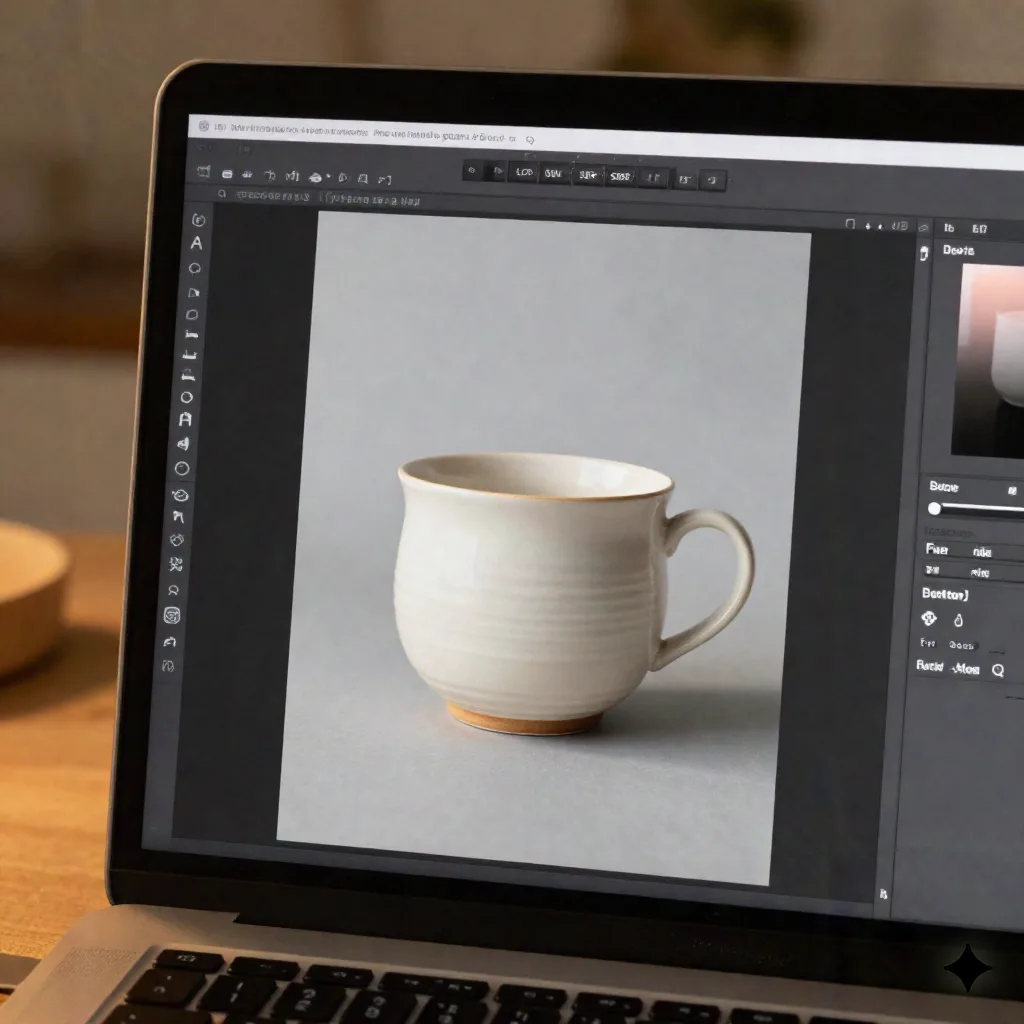
Item 2 on that list, background transform, is where I actually use Season Swap most. Not the flashy holiday version. The boring one: taking a mug shot under flat studio light and giving it the warm, low afternoon light that makes glazed ceramic look like it's sitting on someone's actual kitchen counter instead of a lightbox.
Here's the exact result on those 38 listings: 31 of them went through Season Swap in one afternoon, roughly four minutes per photo including export. The other 7 stayed as plain studio shots on purpose, because a few buyers specifically want to see true, uncorrected glaze color before they commit to a $60 piece.
Season Swap works best on surfaces that already have some texture and reflectivity: glazed ceramic, glass, metal rims. It struggles on matte, single-color backgrounds where there's nothing for the new light to catch. On two mugs with a flat black glaze, the swap looked muddy and I reverted to the original. That's a friction worth knowing before you run 40 photos through it and find out at the end.
This is also where item 1 on the checklist, matching the light source, pays off twice. A spell that changes ambient light works best when the source photo is already lit cleanly and evenly. Feed it a photo with a harsh shadow from an off-angle lamp, and the swap has to fight that shadow instead of building on it. Skip item 1, and item 3 gets harder for no good reason.
The action item AI still can't check off for me
The honest one: no spell fixes a chipped rim, a smudge on the glaze, or a photo that's slightly out of focus. Those are pre-shoot problems, and Season Swap, Scene Shift, or any competitor's tool will just apply a nice light to a flaw and make it more visible, not less.
I keep a physical version of item 1 on a sticky note by my shooting setup now: check the piece under strong light before the camera comes out, not after. It's not glamorous, and it's the item on the list that has saved me the most reshoots.
I learned this one after publishing a listing where a hairline glaze crack showed up clearly once I'd run Season Swap on it. The AI didn't add the flaw. It just lit the piece well enough that a flaw I'd missed under my dim lamp became obvious to every buyer who zoomed in. Now the physical inspection happens under the brightest light in the room, before anything touches a camera, let alone a spell.
Photoroom and Pebblely both do a competent job on the pure background-removal step, if all you need is a clean white cutout and nothing stylistic. Where Season Swap earns its place is the step after that: turning a clean cutout into a scene that has an actual mood, not just an empty white void behind your product.
Solo Etsy shop or full e-commerce catalog: the list scales differently
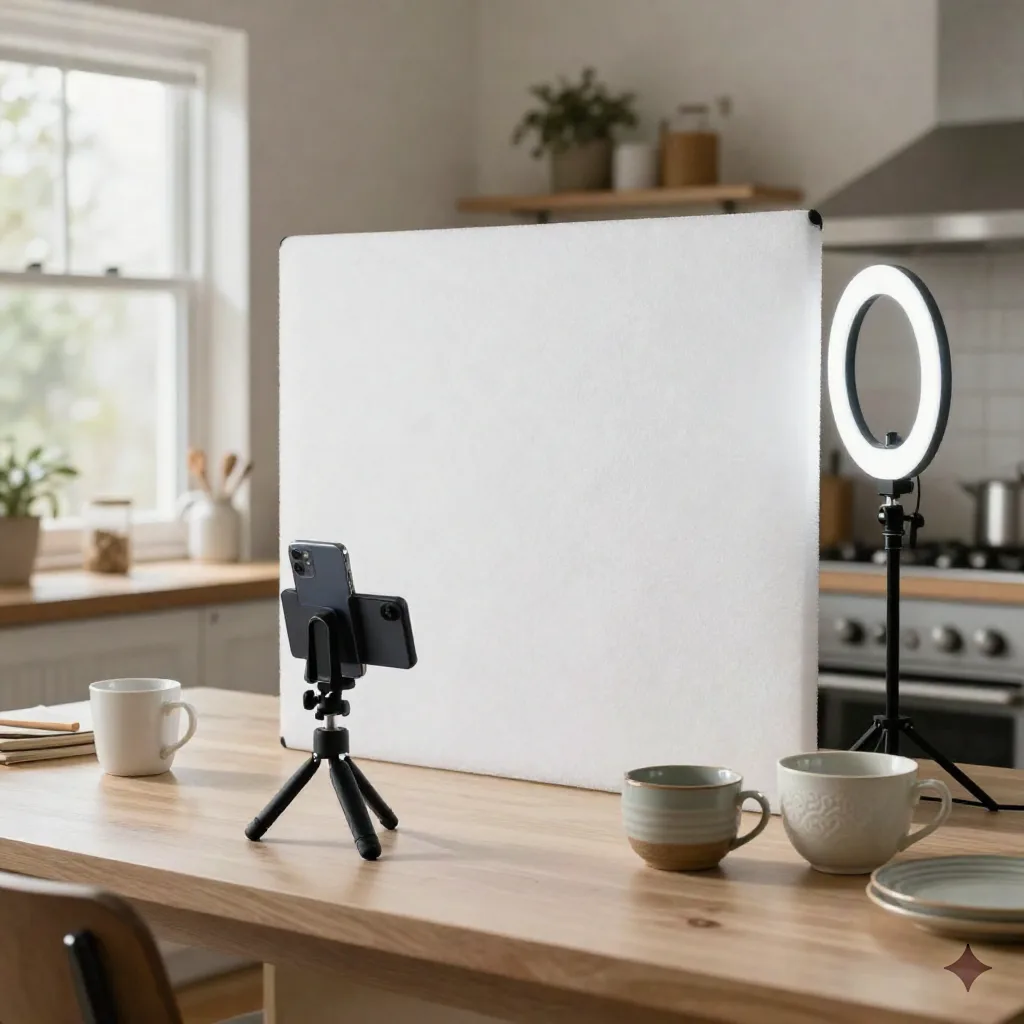
For a one-person shop shooting 15 to 40 pieces a season on a kitchen table, the six-item list above is the whole workflow. You don't need a studio, and you don't need a production system. You need the checklist and about half a day.
Once a catalog crosses a few hundred SKUs, or a brand is running seasonal drops across multiple collections, the checklist stops scaling by hand. That's the point where a tool built for consistent AI mannequins and repeatable virtual sets across an entire line, like Klayn, earns its cost: the same model, the same décor, the same artistic direction applied automatically instead of eyeballed photo by photo.
Know which one you are before you pick your tools. A solo seller buying a full studio-scale platform is solving a problem they don't have yet. A 400-SKU brand running the six-item list by hand every week is solving the wrong problem too, and usually knows it: the tell is a team member whose actual job title has quietly become "photo person," spending three days a week just keeping the catalog consistent.
The line between the two isn't SKU count alone. It's whether the same person is still making every visual decision by hand each time, or whether the decisions got made once and now apply automatically. Six action items you run manually is a workflow. The same six items encoded into a platform's defaults is a system, and the difference matters more once a shop crosses a size where "I'll just remember" stops working.
Turning the list into a 22-minute routine
Here's what the routine looks like once it's not new anymore, timed on a real batch of 12 listing photos:
0 to 3 minutes: run the light-match check (item 1), pull anything that needs a reshoot.
3 to 6 minutes: sort the remaining photos into "disappear background" versus "transform background" piles (item 2).
6 to 18 minutes: run the transform pile through one spell, batched (items 4 and 5). This is the bulk of the time and the part that used to take an hour before I stopped switching styles mid-batch.
18 to 22 minutes: export everything at once, no second-guessing (item 6).
Twenty-two minutes for 12 photos isn't a record. It's just what happens when you stop deciding things twice.
There's a seventh, unofficial item that only shows up occasionally: if a photo fails the light-match check badly enough, it gets pulled from the batch entirely and reshot before it re-enters the list at item 1. That escape valve matters. Without it, you end up trying to fix a bad source photo with more spells, which is how a 22-minute routine quietly becomes a 90-minute one.
What changes when the checklist becomes automatic
The visible difference isn't any single photo looking dramatically better. It's that the whole shop starts looking like it was shot by one person with one point of view, because it was, on a schedule, following the same six steps every time.
Buyers notice consistency before they notice quality. A feed where every photo has the same light temperature and the same background logic reads as a real, established shop, even if a couple of the source photos were shot on a phone propped against a stack of books.

Should you copy this list, or build your own?
Copy the structure, not the specifics. My six items are tuned for glazed ceramic under natural light, sold through a marketplace where zoom quality matters. A candle brand, a jewelry shop, or a print seller will swap item 3 for something else entirely and might not need item 2's background decision at all if every photo is already flat-lay on the same fabric.
What doesn't change: sequence beats improvisation, one spell beats five, and the item that saves the most time is almost never the AI step. It's the ten seconds you spend deciding what this photo actually needs before you open anything.