How to Change Background in Photo: 5 Steps That Hold
Summary
To change background in photo files, cut out the subject, place it on a new backdrop, then match light, edge and shadow. The cutout is the fast part. Integration decides whether the result looks real: check the edge at 200 percent, point the shadow away from the light, and match color temperature. AI can generate the whole backdrop in one pass. Skip the swap on glass, chrome and products where scale matters.

Here is how to change background in photo files so the result holds up: cut the subject out, place it on a new backdrop, then match the light, the edge and the shadow. Most guides stop after step one, and that is why the result looks pasted on. The cutout takes seconds with any AI tool. The believable part takes a few more minutes. This guide covers the order that works, the three tells that give a fake away, and when a background swap is the wrong move.
Three jobs hide inside that one sentence. Separate them and you stop blaming the tool for the wrong step.
Selection. The tool decides what is subject and what is background. Modern AI handles a mug on a table without help. It struggles with hair, fur, knitwear, glass and anything translucent.
Replacement. A new backdrop goes behind the subject. This can be a flat color, a photo, or a scene generated from a text prompt.
Integration. The subject and the backdrop have to agree on light direction, color temperature, edge softness and shadow. This is the step that separates a photo that passes without questions from one that gets scrolled past.
Free background changers from Canva, Adobe Express or Picsart cover the first two jobs well. Integration is where they differ, and where your time goes.
Which method should you pick for your photo?
The question that matters is not "which tool is best". It is "how complicated is my subject, and how many photos do I have". Here is the split we would use.
One portrait, one-off, hair in the frame: manual select in Photoshop, or an AI cutout plus a hand-painted edge fix. Budget 5 to 15 minutes.
Product with clean edges (mug, bottle, box): AI cutout plus a generated backdrop. Under a minute.
20 to 200 product shots, same look: a batch tool with a saved scene. A few seconds each after setup.
Soft, fuzzy or glass subjects: cutout, edge refinement, then a check on a dark and a light backdrop. 3 to 8 minutes.
A cutout tool such as Photoroom is built for the second and third rows. Photoshop's selection tools earn their price in the first and fourth.
Skip the manual route when you have a catalog. Forty photos at ten minutes each is nearly seven hours, and nobody's feed is worth that.
How do you change a photo background in five steps?
This sequence works in any editor. The tool names change, the order does not.
Start from the best source you have. A sharp photo shot in even light beats a rescued one. If the original has a hard window shadow across the subject, no background will hide it.
Cut the subject out and inspect the edge at 200 percent. Zoom in before you go further. Halos, missing wisps and chewed corners are cheap to fix now and expensive later.
Choose a backdrop that matches the original light. If the subject is lit from the left, the new scene should be lit from the left. Generating a backdrop from a prompt? Say the light direction in the prompt: "soft window light from the left".
Place the subject and rebuild the contact shadow. A subject needs something to sit on. A soft shadow that falls away from the light source, darker where the object touches the surface, is what makes it feel grounded.
Match color and grain. Warm the subject if the new scene is warm. Add a touch of the same grain to both layers so they look like they share a lens.
Step 3 is where AI generation earns its keep. It builds a scene around your subject instead of dropping it into a flat stock image, so the light usually agrees from the start. In practice, a generated backdrop needs one or two re-rolls before the light direction lands.
Why does your swapped background look fake?
Three tells appear again and again. Learn them and you will spot them in your own work before anyone else does.
The halo
A thin bright or dark line along the subject's edge. It is leftover pixels from the original background, and it shows up the moment the new backdrop has a different brightness. Dark knitwear cut from a white wall and dropped onto a dark scene is the classic case.
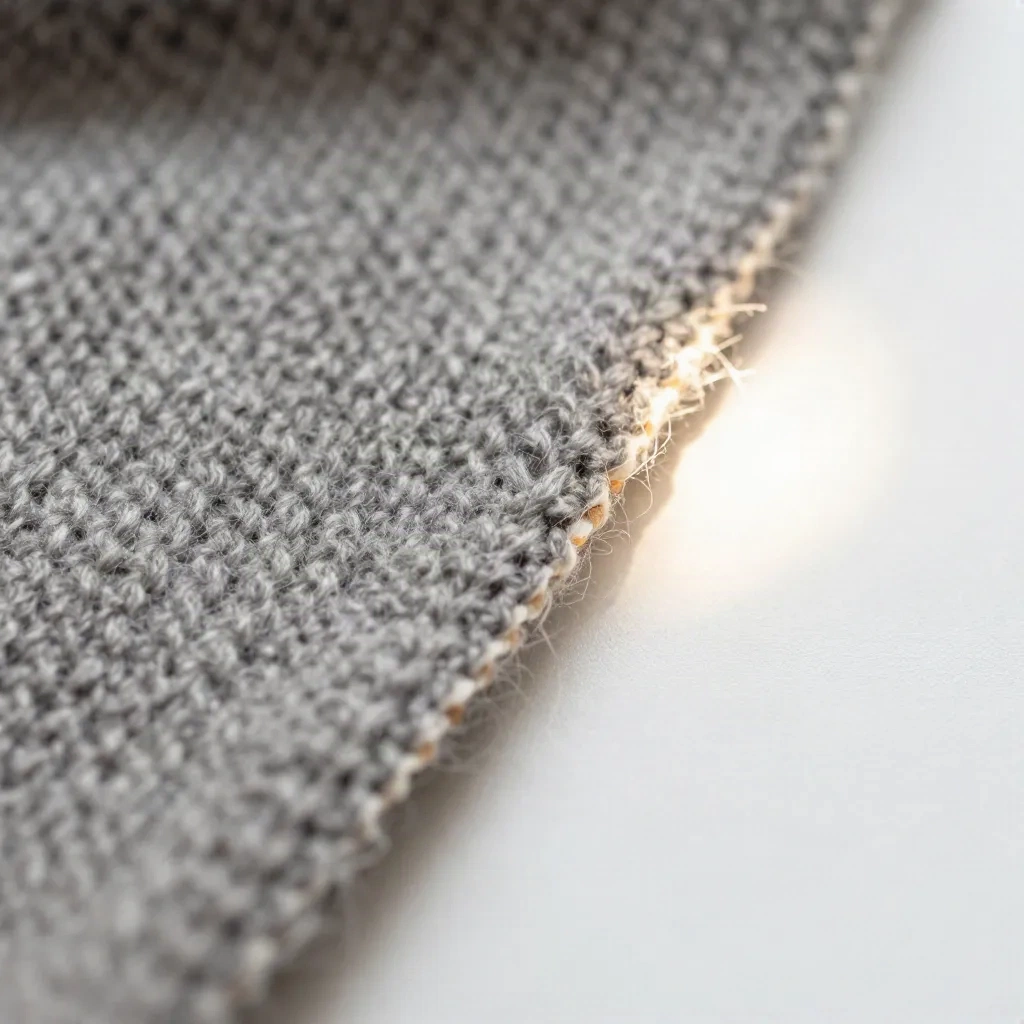
The fix: shrink the selection by one or two pixels, feather it by about one pixel, or run an edge-cleanup pass. Always test the cutout on both a light and a dark backdrop. If it holds on both, it holds anywhere.
The floating object
No shadow, or a shadow that points the wrong way. This one is the most common failure in AI product photos, because many tools generate a plausible shadow without checking where your light actually comes from. If the highlights on the subject are on the left, the shadow goes right. Check it every time.
The mismatched temperature
A cool, bluish studio subject on a warm, golden-hour backdrop. Your eye reads it in a quarter second even if you cannot say why. Move the subject toward the scene, not the other way around, because you usually have more latitude on a single cutout than on a full background.
Can AI generate the whole new background for you?
Yes, and it is the fastest route when you do not have a specific backdrop in mind. You describe the scene, the tool builds it around the subject, and lighting is part of the result instead of an afterthought.
This is exactly the kind of job the Scene Shift spell at photospells.com is built for: you give it the subject and a scene description, and it replaces the backdrop while keeping the subject's shape and light logic. Works best on objects with clear edges and a single dominant light. It struggles with glass and with busy, patterned subjects, where a quick manual edge check still pays off.
Prompts that work are specific about three things: the surface ("pale oak table"), the light ("soft daylight from a window on the left") and the depth ("shallow depth of field, background out of focus"). Prompts that fail say "nice kitchen". The model fills that gap with the most average kitchen it has seen, and your product starts to look like everyone else's.
For anyone who wants fine control instead of a one-click result, Photoshop's Generative Fill and selection tools remain the most precise option. They are also the slowest.
The honest trade-off: Photoshop gives you the finest control and costs the most time. A one-click spell gives you speed and a result that is good enough for social and web. If you plan to print a poster, spend the extra time. If you post to a feed, you probably should not.
What do Amazon, Etsy and Shopify actually require?
Rules differ per platform, and mixing them up is how listings get flagged.
Amazon asks for a pure white background (RGB 255, 255, 255) on main images, with the product filling about 85 percent of the frame, according to this breakdown of marketplace image rules. An off-white background can trigger an automated check even when it looks white on your screen. Etsy is looser on background color but insists on showing the item buyers will receive, as laid out in Etsy's own image guidelines. Shopify has no fixed rule, which makes consistency the thing to optimize.
One more number worth knowing: a Stylitics survey cited by Shopify found that 71 percent of shoppers cannot reliably tell AI product photos from traditional ones. What they care about is whether the product is accurate. The lesson is simple. Change the background, never the product. Do not let a tool redraw your logo, your label text or the texture of your fabric.
Not sure what each store should look like before you start shooting? A hosted store builder with built-in image slots makes the decision for you, and WiziShop is one example if you are starting from zero.
How do you keep 50 photos looking like one shop?
Single photos are a craft problem. Catalogs are a consistency problem, and consistency is what shoppers notice when they land on a store.
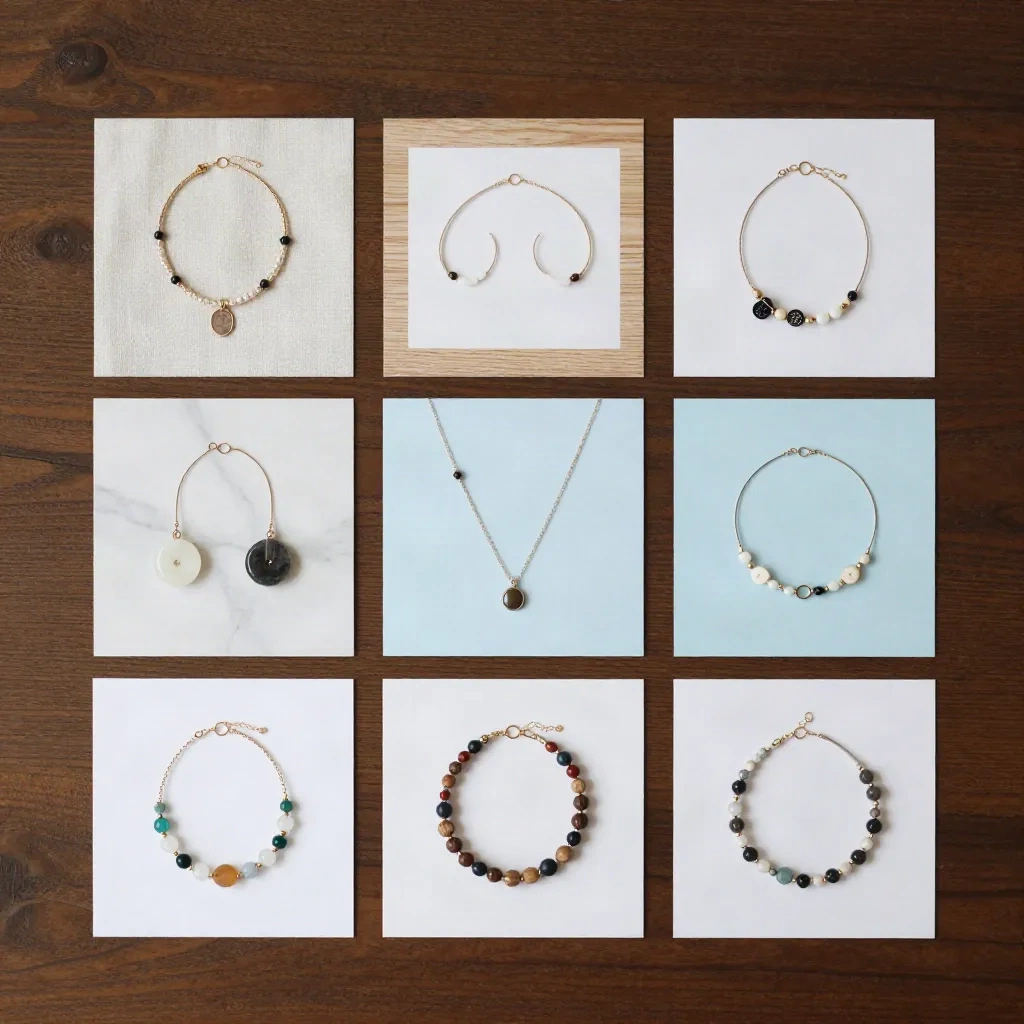
The grid above has six different surfaces, but one light direction, one softness and one shadow style. That is the part to copy. Pick two or three backdrops, not twelve. Write down the light direction and the shadow softness. Save the prompt or the scene setting and reuse it word for word.
When the job grows into a full product line with models, sets and lifestyle scenes, a dedicated AI product photography platform makes more sense than a per-photo background swap. Klayn is built around exactly that: the same sets and direction applied across a whole collection.
For the usual Etsy or Shopify seller with a few dozen listings, the cheaper path is a background tool plus a written style rule. Start there. Move to a studio-style platform when the catalog passes a couple of hundred SKUs or when you need people in the frame.
When should you not swap the background?
Some photos are better left alone. A swap is the wrong move in these cases:
The original light is the selling point. A candle photographed in a dark room has a glow that no new backdrop will reproduce honestly.
Reflective or transparent products. Chrome, glass and clear packaging pick up their surroundings. Replace the surroundings and the reflections no longer match. This is where the method struggles most, even with a perfect cutout.
Scale matters to the buyer. A rug, a lamp or a piece of furniture needs a real room for reference. A generic backdrop hides the size and costs you trust.
Etsy handmade shops built on authenticity. A background that looks too clean can undercut the handmade promise. Keep one real, imperfect context shot in the listing set.
The question that decides it: does the new background make the product easier to understand, or only prettier? Only keep the swap when it is the first.
What should you do first?
Take one photo you already have. Run the five steps. Compare the result against the original at full size, and check the edge, the shadow and the color before you check anything else. If all three hold, scale it to the rest of the set. If one fails, fix that one thing in the source photo rather than the cutout.
Do not buy another tool before you have done that. Most failed background swaps come from a weak source photo or a skipped shadow, and neither of those has a software fix.